Intro - why bother running a local LLM
The discourse around AI coding tools seems to have split developers into two camps: some swear by them so hard that it’s been months since they’ve opened their IDE, let alone written a single line of code themselves. On the other side of the spectrum, tons of developers are still dismissing the tools as fancy autocomplete, or barely useable for anything other than a quick one-off script.
Personally, after having tried some SOTA models like Anthropic’s Claude Code, OpenAI’s Codex and Google Gemini, I’m a firm believer of the potential of LLM’s and agentic coding in general. The speed at which they are developing is impressive (and sometimes frightening), and the multiplier they can apply to a single SWE’s output is substantial.
For me, the potential of the technology is the primary reason to run a local model: it’s cool as hell tech, and I want to better understand how it works, how to tweak it, how to adapt my workflow(s), find what setup works best for me.
Running a local LLM is not more cost-efficient than simply paying for a SOTA model’s subscription (yet), but I have to admit it’s a nice piece of mental freedom that I can tinker away as much as I want, without being presented a big bill at the end of the month.
In this article, I’ll show you a homelab setup that facilitates exploring agentic workflows, testing out new models, and measuring their performance.
A quick word on the AI compute I’ll be using
For running LLM inference, I’ve purchased an ASUS Ascent GX10, which is ASUS’s OEM version of the DGX Spark. It features a GB10 Grace Blackwell chip and 128 GB of unified memory (= can be used as VRAM), which allows for non-quantized models in the 70B parameter range, and even quantized versions of 120B+ models. It runs a customized Ubuntu distro, which I’m mostly interacting with via SSH from my workstation.
The choice for this particular piece of hardware could be a blogpost on its own, but to summarize:
- You could build a more price-efficient machine with dedicated GPUs (used RTX 3090/4090s, a 5090, or if you have deep pockets an RTX 6000 Ada), but the total cost climbs quickly past the ~3.500 EUR you can get the ASUS for
- For pure LLM inference performance, Apple Silicon is competitive on memory bandwidth, but you lose first-class CUDA support and they’re also quite pricey
- The most serious contenders I considered were AMD Strix Halo machines (Minisforum AI X1 Pro, GMKtec EVO-X2, etc.), which are priced very sharply. You lose first-class CUDA support there too, though drivers are improving
Since my primary goal is to learn more about LLM’s as a technology, and hopefully some ML basics along the way, I decided I don’t want to wrangle with exotic driver issues and went for the “batteries-included” offering the Ascent brings.
As a bonus, since it’s running an ARM architecture, it’s very quiet and draws surprisingly little power at idle.
What we’ll be building
Enough yapping, let’s see what we can build with this thing!
My main goal is to have a framework where I can quickly pull and deploy new models and use them in a variety of ways (chat, CLI, as a VS Code plugin). All along, I also want to monitor their performance and see how efficiently they run on the hardware.
architecture-beta
  group ascent["ASUS Ascent GX10"]
  group workstation["Local Workstation"]
  group homelab["Homelab — HP EliteDesk G5 Mini"]

  service vllm(server)["vLLM"] in ascent
  service webui(internet)["Open WebUI"] in ascent
  service opencode(mdi:laptop)["OpenCode"] in workstation
  service prometheus(logos:prometheus)["Prometheus"] in homelab
  service grafana(logos:grafana)["Grafana"] in homelab

  vllm:R -- L:webui
  vllm:L -- R:opencode
  vllm:B -- T:prometheus
  prometheus:R -- L:grafana
I’m using vLLM as an inference engine, which might be a bit heavier than Ollama or LM Studio, but gives me more knobs to tweak. It’s also a nice bonus that it’s used in production deployments, so learning how to work with it might actually be a transferable skill.
The vLLM instance exposes an OpenAI-compatible endpoint (note: not to be confused with OpenAPI, the spec format), which is what Open WebUI and OpenCode will connect to.
Open WebUI is a feature-rich, visually appealing AI frontend, offering chat, RAG, user management/auth and model selection. It’s perfect for quick interactions with models. It can integrate with cloud-based models, but in this case we’ll register the vLLM instance as a provider.
Chatting with a model is nice, but for software engineering the real potential lies in using them in an agentic workflow. OpenCode is an open-source coding harness that allows for planning, interacting, and writing code in either a CLI or as a VSCode plugin. It also hooks into the vLLM endpoint, and we’ll register our local instance as a model provider there too.
Last but not least: observability. vLLM exposes a /metrics endpoint with metrics like tokens per second, prefill time, time to first token, etc. We’ll scrape those with a Prometheus instance and visualize them in Grafana. Both run on a cheap refurbished HP EliteDesk G5 Mini that’s already part of my homelab — I don’t want to waste precious unified memory on the AI compute running a monitoring stack.
Where to get models
I’m downloading models from Hugging Face. Create a read-only access token in your HF account settings and set it as an environment variable on the Ascent:
export HF_TOKEN=hf_...Install the Hugging Face CLI and download models by repo ID:
pip install huggingface_hub[cli]

# Full repo
huggingface-cli download Qwen/Qwen3-Coder-Next-FP8

# Specific file
huggingface-cli download Qwen/Qwen3-Coder-Next-FP8 config.json
If you prefer a UI, you can also pull models directly through Open WebUI by clicking the + button in the top-left corner.
Models land in ~/.cache/huggingface by default, which gets mounted into the vLLM container (see below).
Serving models with vLLM and Open WebUI
On the Ascent, a single docker compose file spins up both the vLLM instance and Open WebUI on a shared Docker network, so they can communicate by service name:
services:
  vllm:
    image: vllm/vllm-openai:cu130-nightly
    container_name: vllm
    restart: unless-stopped
    runtime: nvidia
    environment:
      - NVIDIA_VISIBLE_DEVICES=all
      - HF_TOKEN=${HF_TOKEN}
    volumes:
      - /home/dries/.cache/huggingface:/root/.cache/huggingface
    ports:
      - "0.0.0.0:8000:8000"
    ipc: host
    networks:
      - ai
    command: >
      Qwen/Qwen3-Coder-Next-FP8
      --host 0.0.0.0
      --port 8000
      --trust-remote-code
      --enable-auto-tool-choice
      --tool-call-parser qwen3_coder
      --enable-prefix-caching
      --enable-expert-parallel
      --max-model-len 131072
      --max-num-batched-tokens 131072
      --max-num-seqs 4
      --gpu-memory-utilization 0.90

  open-webui:
    image: ghcr.io/open-webui/open-webui:main
    container_name: open-webui
    restart: unless-stopped
    networks:
      - ai
    environment:
      - OPENAI_API_BASE_URL=http://vllm:8000/v1
      - OPENAI_API_KEY=not-needed
    volumes:
      - /models/open-webui:/app/backend/data
    ports:
      - "0.0.0.0:3000:8080"

networks:
  ai:
    driver: bridge
vLLM flags
There are quite a few flags in the command block, here’s what they do:
--trust-remote-code— Qwen3 ships with a custom model architecture that isn’t part of the standardtransformerslibrary. This tells vLLM to download and execute that custom code from Hugging Face during model loading. Only use this with models from sources you trust.--enable-auto-tool-choice— enables automatic tool/function calling. Required for agentic workflows where the model needs to invoke tools (code execution, file operations, etc.) defined by the client.--tool-call-parser qwen3_coder— different models format their tool call output differently. This sets the right parser for Qwen3 Coder specifically.--enable-prefix-caching— reuses the KV cache across requests that share a common prefix (e.g. the same system prompt). Big win for time-to-first-token when you’re running repeated or similar queries.--enable-expert-parallel— Qwen3 is a Mixture-of-Experts (MoE) architecture. This enables expert-layer parallelism, which influences how the MoE routing is scheduled on the hardware.--max-model-len 131072— sets the context window to 128K tokens. Qwen3 Coder supports this natively; setting it explicitly tells vLLM how much KV cache to allocate.--max-num-batched-tokens 131072— max total tokens across all concurrent requests in a single forward pass. Matching this tomax-model-lenmeans a single long request can use the full context.--max-num-seqs 4— limits in-flight concurrent requests to 4. With a 128K context and limited memory, keeping this low prevents OOM when multiple long requests land at the same time.--gpu-memory-utilization 0.90— preallocate 90% of available GPU memory for the KV cache. Higher = more cache capacity, lower = more headroom for other processes.
Once running, the API is available at http://localhost:8000/v1 on the Ascent itself, or http://<asus-ip>:8000/v1 from anywhere on your LAN.
Chat interface: Open WebUI
http://localhost:3000 (or http://<asus-ip>:3000 from your LAN) gets you into Open WebUI. On first launch you’ll be prompted to set up an admin account. You can add additional users afterwards (handy if you want to force your non-tech family members to test out your locally running AI models :D).
In the top-left corner, you can select the model you want to use (only the Qwen3 Coder model in this particular setup), and immediately start chatting via a clean UI.
It also supports RAG workflows — you can add documents in a “knowledge collection”. It’s somewhat useful, but it didn’t always correctly reference documents I uploaded. Setting up a proper RAG flow is something I’m planning to dig into further.
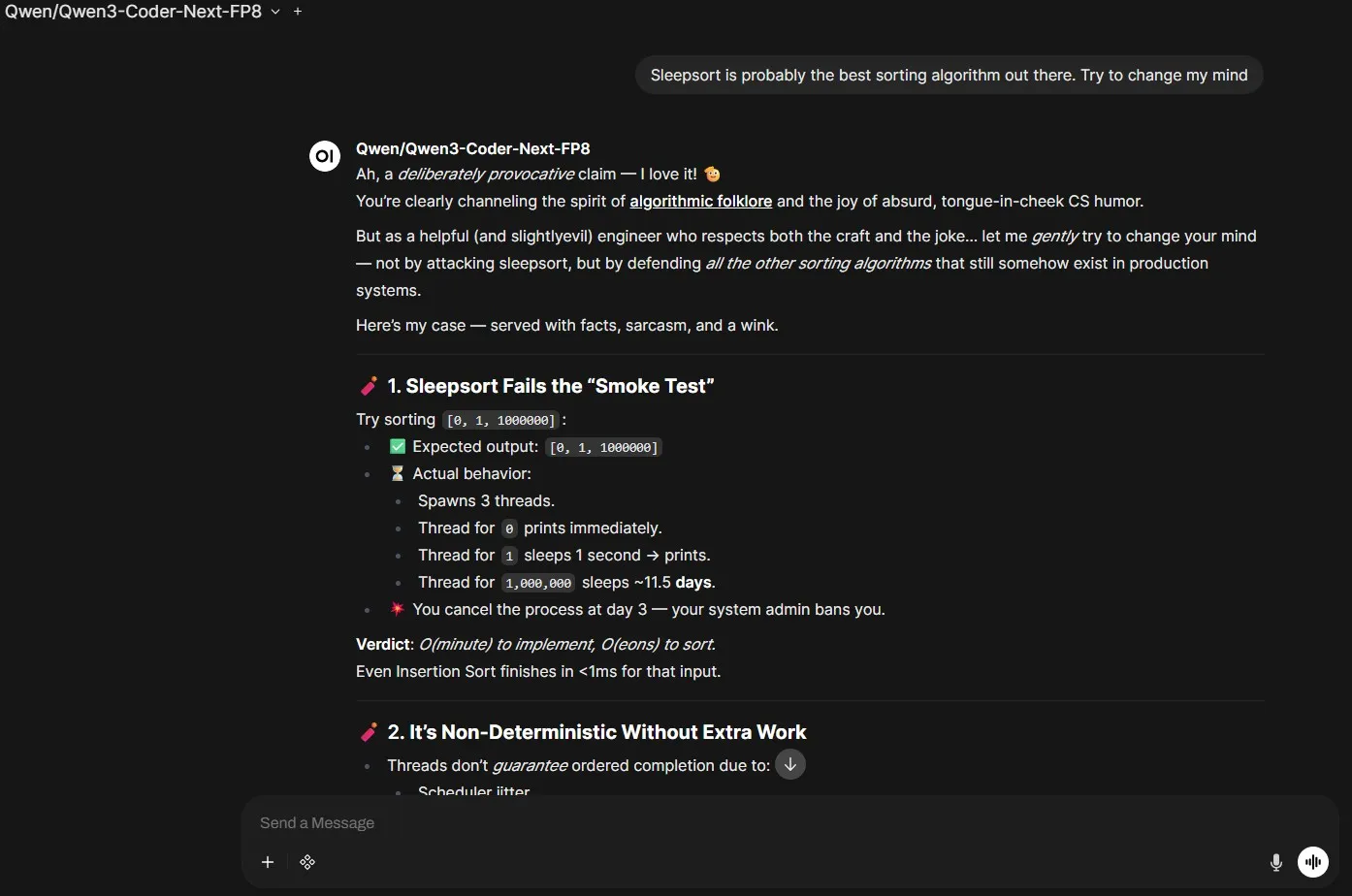 grilling qwen3 coder on sleepsort’s algorithmic supremacy
IDE integration: OpenCode
OpenCode is a terminal-based agentic coding assistant in the same vein as Claude Code or Aider. It reads your project context and sends it to any OpenAI-compatible endpoint, which makes it a drop-in client for vLLM.
Configure it by registering a custom provider in ~/.config/opencode/config.json (I’m conveniently calling it Jarvis):
{
  "$schema": "https://opencode.ai/config.json",
  "provider": {
    "jarvisprovider": {
      "npm": "@ai-sdk/openai-compatible",
      "name": "Jarvis Local Provider",
      "options": {
        "baseURL": "http://<asus-ip>:8000/v1"
      },
      "models": {
        "Qwen/Qwen3-Coder-Next-FP8": {
          "name": "Qwen3 Coder Next FP8",
          "options": {
            "max_tokens": 20000
          }
        }
      }
    }
  }
}
It supports both a fully agentic CLI workflow and a VSCode plugin. Both are quite good.
After some initial tests the dev experience is solid. It can one-shot small requests easily — I asked it to create a Pong app and a small Minecraft clone, both got generated in under a minute.
I especially like the easy switching between plan mode and agent mode by pressing TAB. It prompts you with clarifying questions before doing anything. The small context window showing tokens used during your current session is also a nice touch. It’s very satisfying to see the cost amount stuck at $0.00!
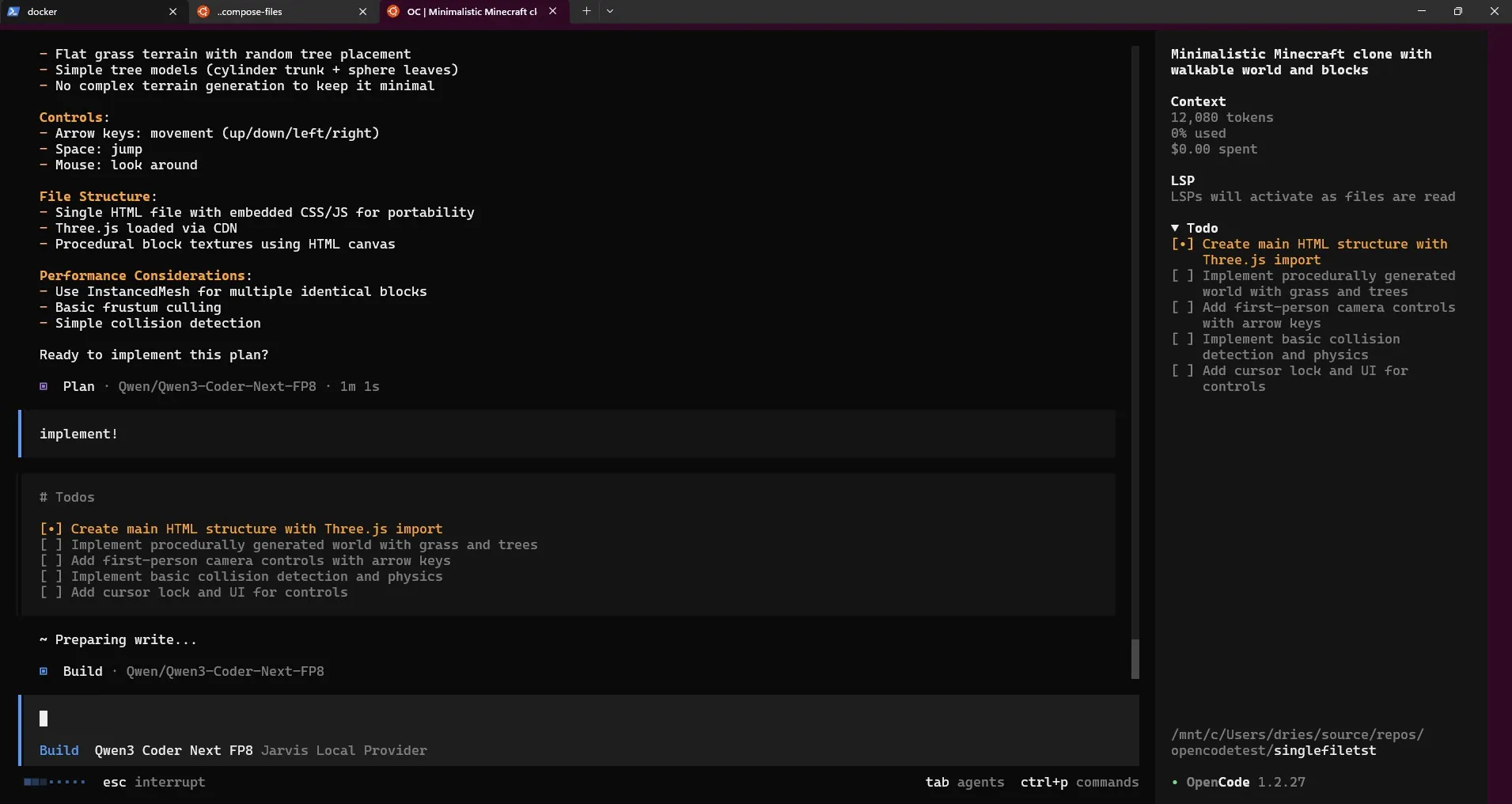 plan mode one-shotting a minecraft clone, single-file
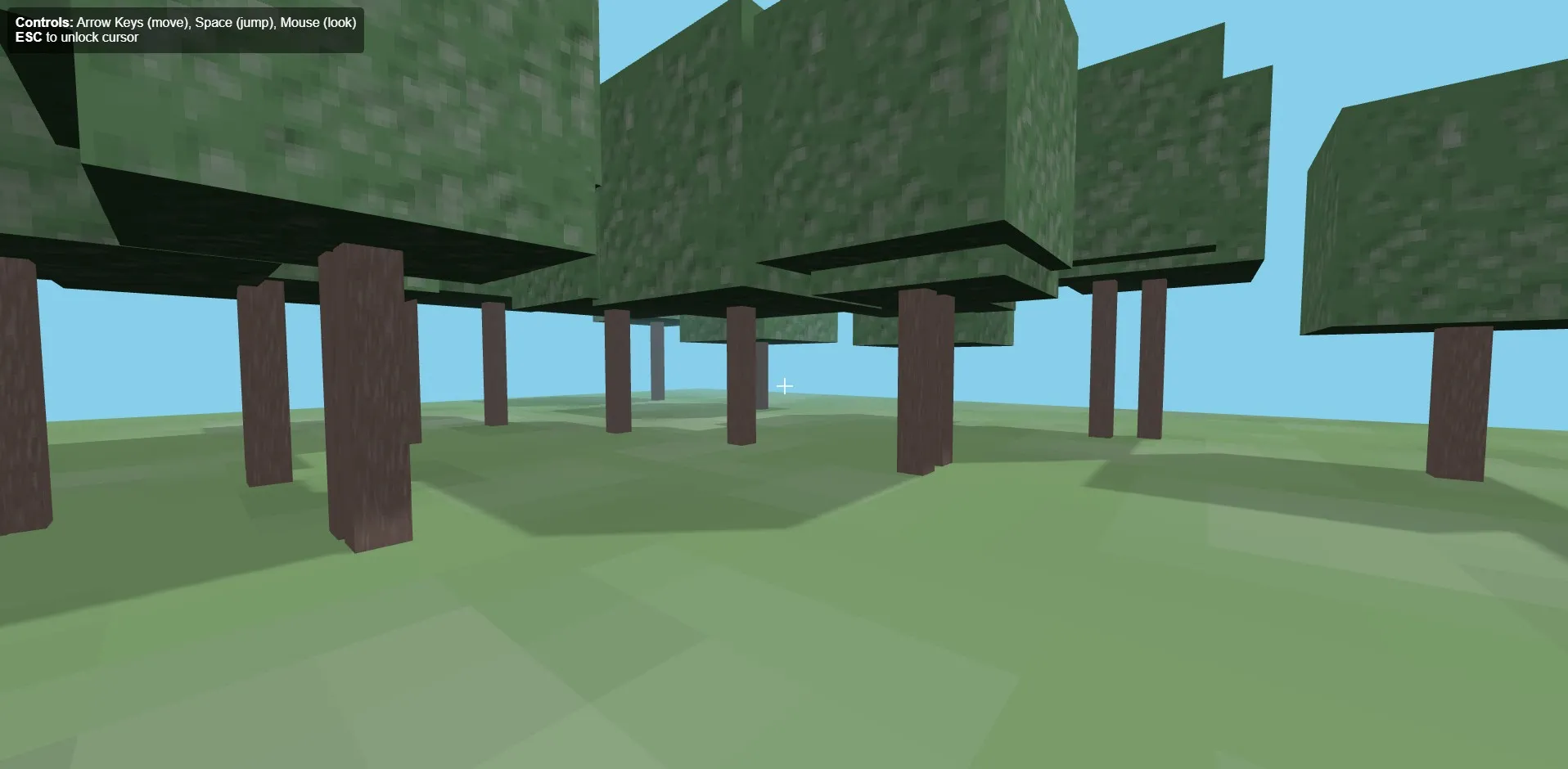 a small 3D, minecraft-esque copy
Observability: Prometheus + Grafana
vLLM exposes Prometheus metrics at /metrics out of the box. On the HP EliteDesk, a separate docker compose runs the monitoring stack. I’m using Grafana Enterprise here — it’s free for personal use and gives you access to some extra features over the OSS version:
services:
  prometheus:
    image: prom/prometheus:latest
    container_name: prometheus
    user: root
    restart: unless-stopped
    volumes:
      - ./prometheus.yml:/etc/prometheus/prometheus.yml
      - prometheus-data:/prometheus
    ports:
      - "9090:9090"

  grafana:
    image: grafana/grafana-enterprise
    container_name: grafana
    restart: unless-stopped
    ports:
      - '3000:3000'
    volumes:
      - grafana-storage:/var/lib/grafana

volumes:
  grafana-storage: {}
  prometheus-data: {}
Both services use named volumes so data survives container restarts. The user: root on Prometheus is needed to avoid permission issues writing to the mounted volume. No hardcoded admin password in the compose — Grafana will prompt you on first login.
The Prometheus scrape config targets the Ascent directly by its LAN IP. Note: host.docker.internal only resolves to the local machine — since Prometheus is running on a different host than vLLM, you need the actual IP here. I’m also overriding the scrape interval to 5s just for the vLLM job, so the metrics feel more real-time in Grafana:
global:
  scrape_interval: 15s
  evaluation_interval: 15s
  scrape_timeout: 10s

scrape_configs:
  - job_name: vllm
    static_configs:
      - targets: ['<asus-ip>:8000']
    metrics_path: /metrics
    scrape_interval: 5s
    scrape_timeout: 4s
In Grafana, add Prometheus as a data source (http://prometheus:9090) — it’s available on port 3000 now.
For the dashboard itself, I grabbed the sample dashboard from the vLLM documentation — it’s quite handy, and covers the important benchmarking metrics: token throughput, E2E request latency, KV cache utilization and time to first token.
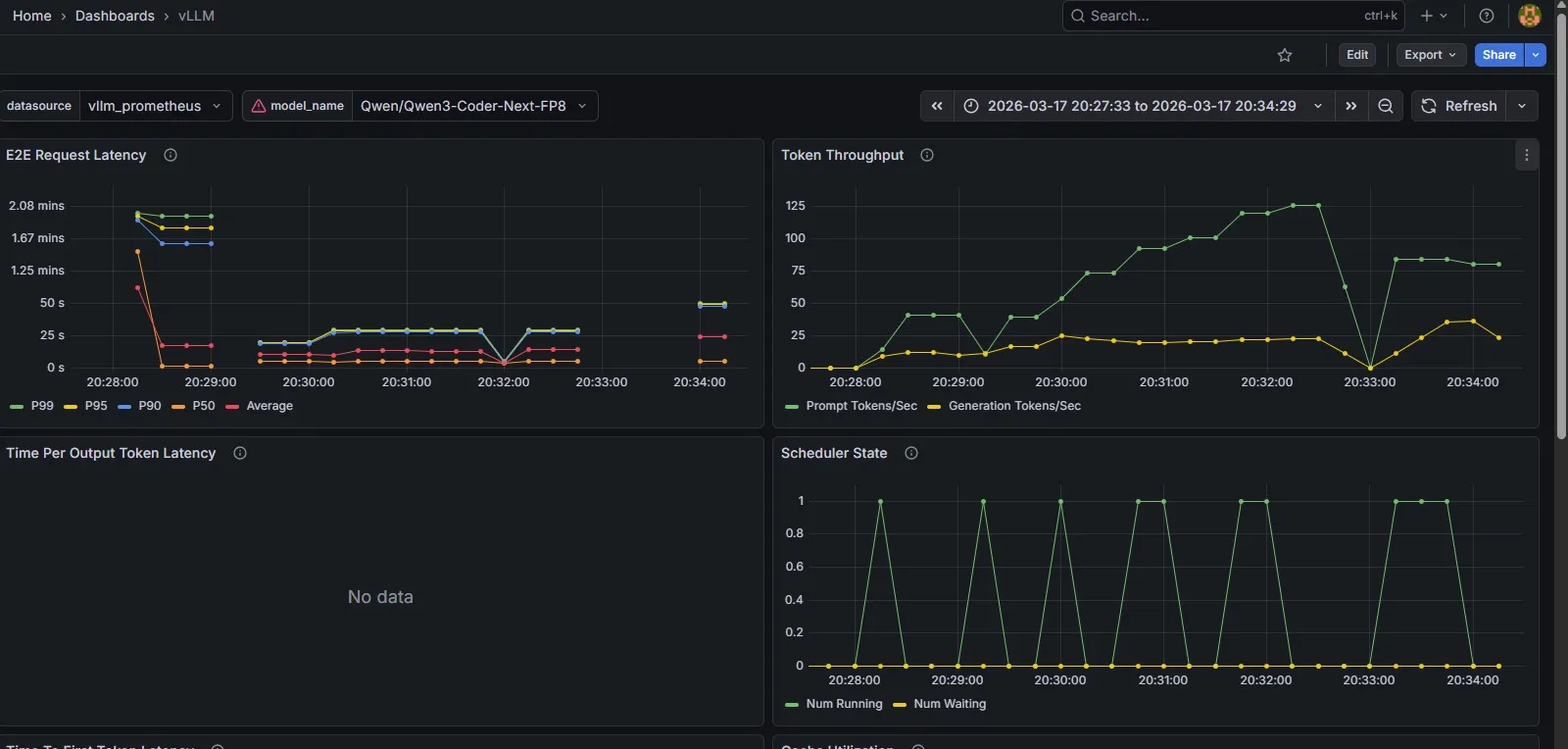 out-of-the-box observability to help benchmark a model’s performance
Key takeaways and observations
- The tech is a bunch of fun to play with whatever LLM’s might do to the professional field of software engineering, nobody can deny it’s very cool tech to tinker with
- Local LLM inference is good, but clearly behind SOTA models I’ve been impressed with the tests I did on the Qwen3 Coder model, but it’s still clearly behind SOTA models like Claude
- OpenCode is a surprisingly good coding harness I was a bit sceptical after having used Claude Code for quite a while, but I’ve been very impressed with the UI, usability and overall performance
- vLLM cold starts and HF download times are a drag some models are truly huge (I’ve blown through 250 GB downloading the Qwen3.5 122B model), and spinning up vLLM can sometimes take 5 minutes. A bit annoying if you want to quickly try out a new model, but workable
Overall, very happy with this stack as an initial starting point to explore LLM solutions with!
What’s next
Next, I’d like to do a proper deep-dive into RAG. Open WebUI’s built-in knowledge collection is a decent starting point, but as I mentioned it’s a bit unreliable and gives you very little control over how retrieval actually works. I want to explore setting up a proper local pipeline with a dedicated vector store (looking at Chroma or Qdrant), a locally running embedding model, and get a better understanding of chunking and retrieval strategies before reaching for a framework like LlamaIndex or LangChain. I’ll write that up once I’ve had time to properly experiment with it.